

Custom crop
All examples below use this original image: https://demo.bitiful.com/girl.jpeg
Parameters
| Parameter | Meaning | Format |
|---|---|---|
rect | Crop region | x,y,w,h: four values separated by ASCII commas |
| Component | Meaning | Values |
|---|---|---|
x, y | Coordinates of the region's top-left corner | Pixels or a percentage; negative values are measured back from the right and bottom edges |
w, h | Width and height of the region | Pixels or a percentage; must be greater than 0 |
- Percentages are relative to the original image's width and height. In URLs, write
%as%25, for examplerect=10%25,10%25,80%25,80%25. - Negative coordinates let you grab a region on the right or bottom without knowing the original dimensions:
rect=-900,-900,900,900is the bottom-right 900 × 900. - Any part of the region that extends beyond the image bounds is cut off, and the output is smaller accordingly.
rectruns beforewandh: the image is cropped first, then resized.- HDR images remain HDR after cropping.
rect is for precise cropping by coordinates. To crop automatically to a target width and height while keeping faces or the main subject, use pos=smart in Resize images.
Examples
Demo: extract a 500 × 500 region from the top-left corner

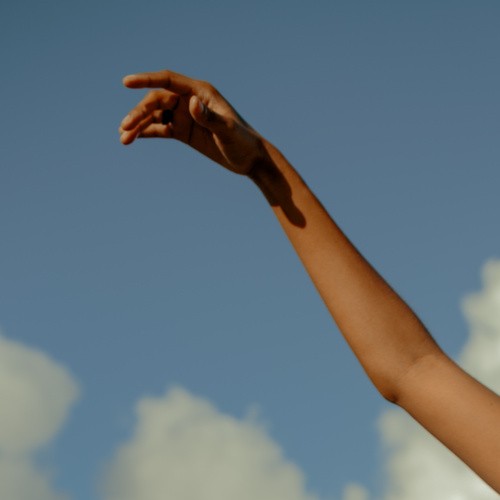
Demo: extract a 1000 × 1000 region from the top-left corner, then resize to 500 wide
rect takes precedence over w and h, so processing happens in two steps:
rect=0,0,1000,1000extracts the 1000 × 1000 region at the top-left corner of the original image.w=500resizes the result proportionally to 500 px wide.
URL: https://demo.bitiful.com/girl.jpeg? rect=0,0,1000,1000 & w=500
