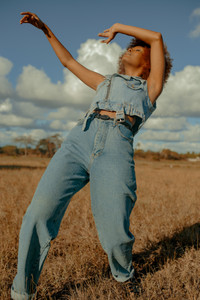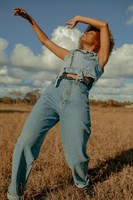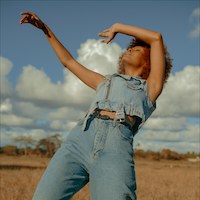

Resize images
All examples below use this original image: https://demo.bitiful.com/girl.jpeg
Parameters
| Parameter | Meaning | Default | Values |
|---|---|---|---|
w | Target width | – | Pixels (up to 10000), or a percentage such as 50% |
h | Target height | – | Same as above |
dpr | Additional scale factor; the target width and height are multiplied by this value | 1 | Greater than 0, up to 10 |
mode | Resize mode; see the table below | crop | crop / clip / fill / scale / adapt |
pos | Position to keep when cropping; see below | center | A preset position, custom coordinates, or smart crop |
fill | Padding method; applies only when mode=fill | solid | solid / blur / dominant / auto |
bg | Background color used for padding | White | Hex color |
In URLs, write % as %25, for example w=50%25.
Resize modes
| mode | Behavior | Output size |
|---|---|---|
crop | Resizes proportionally, then crops off the excess | Exactly w × h |
clip | Resizes proportionally to fit within a w × h box, without cropping | No larger than w × h |
fill | Resizes proportionally to fit within the box, then pads to the target size | Exactly w × h |
scale | Stretches to the target size without preserving the aspect ratio | Exactly w × h |
adapt | Chooses automatically: uses crop when little would be cropped, otherwise fill | Exactly w × h |
- If you specify only one of
worh, the image is always resized proportionally. - If you specify both
wandhwithoutmode,cropis used.
Padding methods
When mode=fill, fill determines what fills the empty area:
| fill | Effect |
|---|---|
solid | The solid color set by bg |
blur | An enlarged, blurred copy of the original image as the background |
dominant | The dominant color of the original image |
auto | Content-aware: extends the edges naturally when they are a solid color or a smooth gradient; otherwise uses a blurred background |
Crop position
When mode=crop, pos determines which part of the image to keep.
| Form | Values |
|---|---|
| Nine-grid | top-left, top, top-right, left, center, right, bottom-left, bottom, bottom-right |
| Offset from center | top-center, bottom-center, left-center, right-center: starts from the center and shifts toward that direction |
| Custom coordinates | x,y, each 0 to 1 or 0% to 100%, such as 0.25,0.75 |
| Smart crop | smart (face and auto are equivalent) |
Smart crop
pos=smart detects faces, people, cats and dogs, and salient subjects in the image and automatically picks the crop window that keeps them most intact. When faces are present, it places them naturally toward the upper part of the frame.
- Detection runs only when the aspect ratios of the original and the target differ by more than 25%; otherwise the image is center-cropped.
- Animated images are not analyzed and are center-cropped.
We recommend pos=smart whenever you need to crop images of varying aspect ratios to a uniform ratio, such as avatars, product images, and feed covers.